

Security for your club’s information.
Your club handles personal details, licences, medicals and operational history. Here is how Azimuth controls file access, protects passwords and supports document encryption, alongside the permissions and activity history your team uses every day.
Protecting files and account access.
The live site uses HTTPS to encrypt information in transit. File access, document encryption and sign-in controls work alongside the permissions your club sets.
Uploads, downloads and storage
Controlled document uploads
Credential uploads are tied to the signed-in member or an authorized staff action. File type and size are checked before storage.
Downloads through expiring links
Private document links are issued after access checks and expire after a short time. Anyone holding a valid link can use it until it expires, so it should be treated as private.
Document encryption
Azimuth supports encryption for stored documents, adding another layer of protection for your club’s private files when enabled.
Private migration uploads
Migration files use dedicated upload links that expire and can be cancelled. Files go into private storage, with temporary signed links used for uploading and downloading.
Passwords and authentication
Password requirements
Members choose a password that meets Azimuth’s minimum length requirement. Password resets require access to the member’s email account.
Repeated attempts are limited
Repeated failed sign-ins temporarily block further attempts for that login. Emailed sign-in codes also have expiry times and attempt limits.
Single-use password reset links
Password resets use an emailed link that expires and can be used once. Requesting a new reset link replaces the previous one.
Access follows club membership
Member sign-in requires an active club membership. The permissions assigned to that membership determine which records and actions the member can access.
Your records, under your club’s control.
Choose who has access, follow important changes and keep your team working to the rules you set.
Your club decides who sees what.
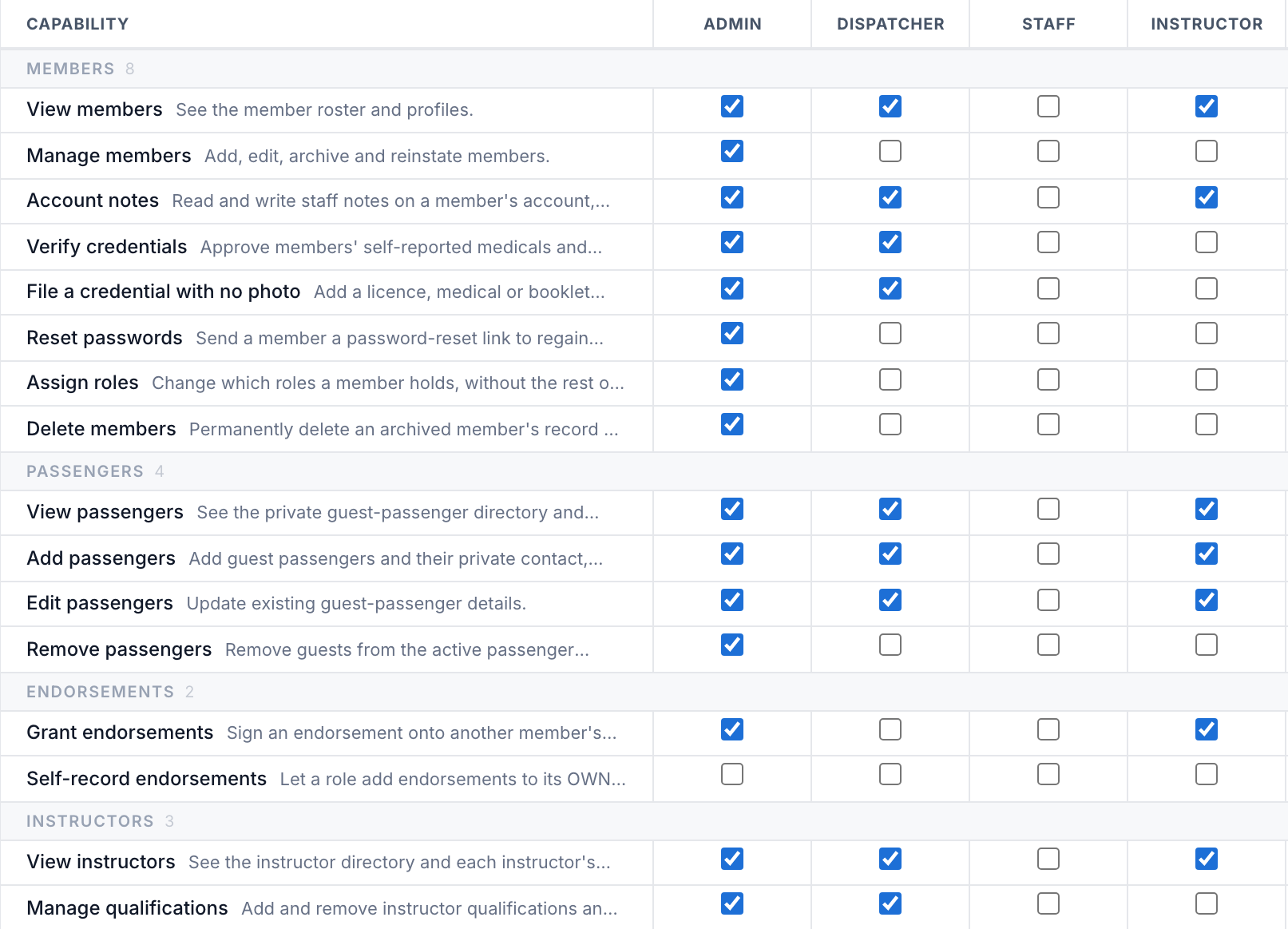
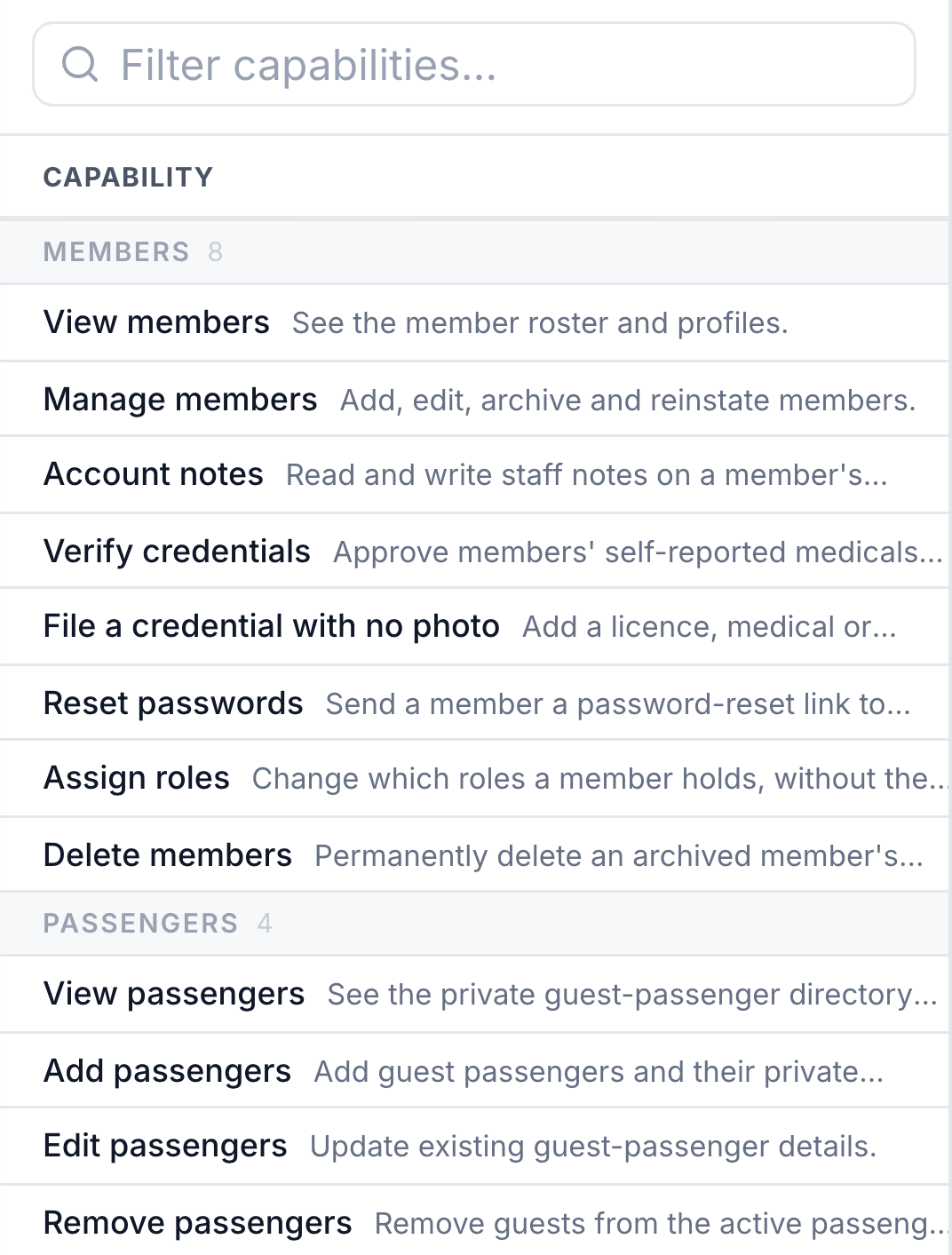
Set access around the roles your club actually uses. Changes take effect on the next page load.
Roles that fit your team
Name and nest roles, choose their permissions, and decide which roles they can assign. Each change saves as you make it.
Booking privacy
Members see that a slot is taken. Other booking details stay private unless you allow access. Members see their own bookings, and instructors see the lessons they teach, in full.
Private staff notes
Account notes kept by staff are never visible to the member they concern.
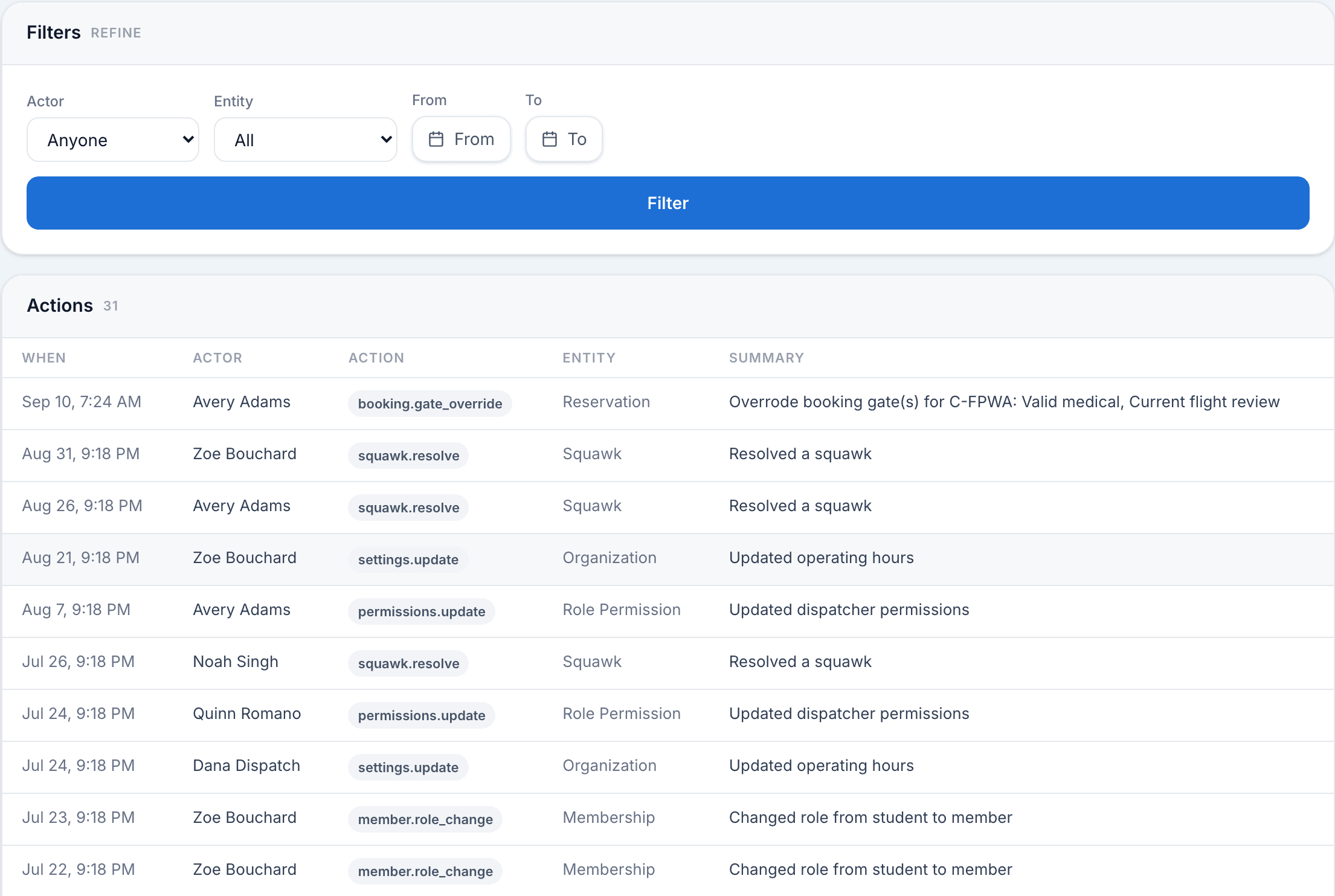
See who changed what, and when.
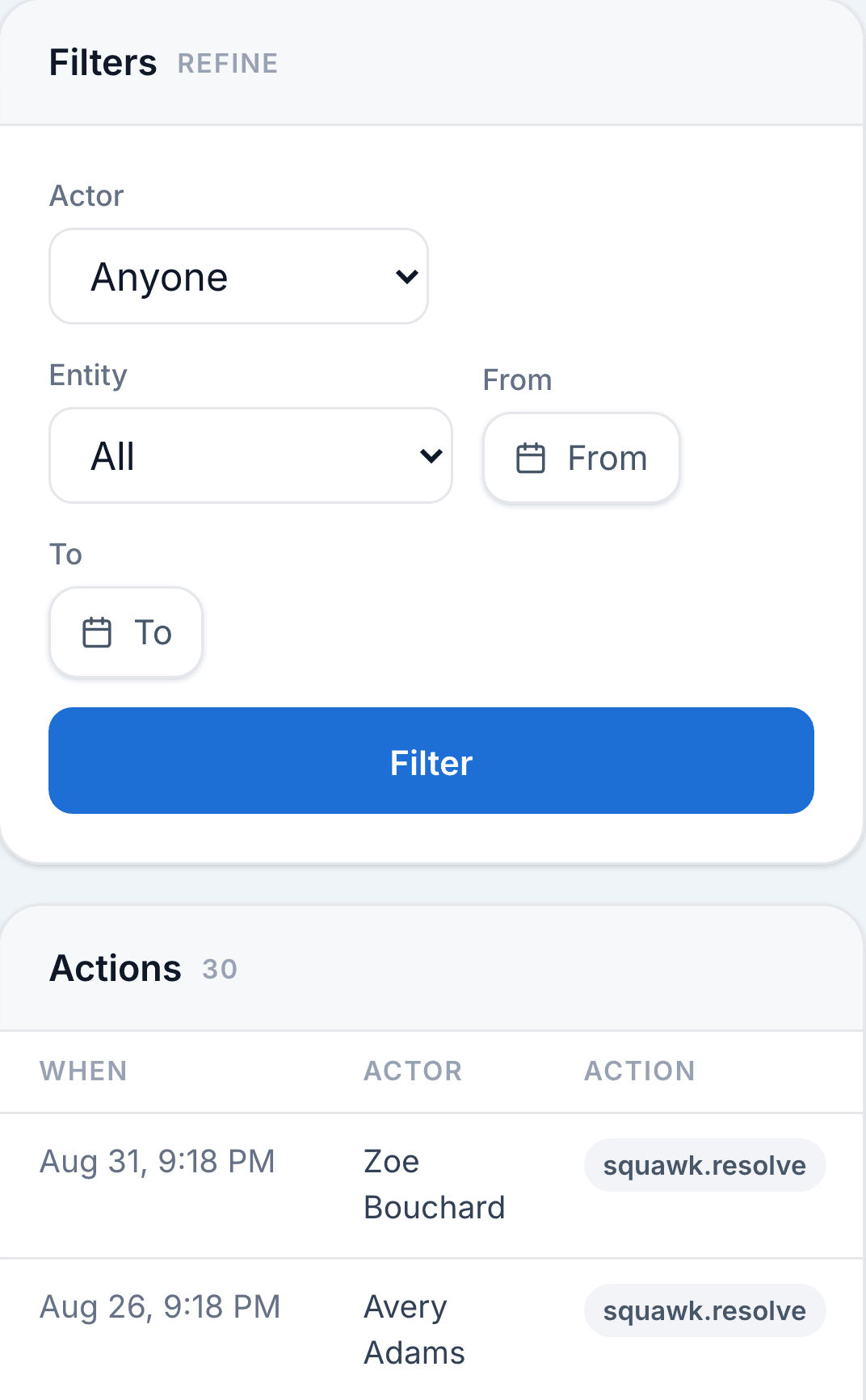
Review recorded activity by person, record type or date range, and share a link to the filtered view.
Decisions and their reasons
Booking overrides retain the reason staff entered. Credential approvals and denials are recorded, including the reason for a denial.
Changes you can trace
See who changed, cancelled or moved a booking, alongside individually recorded permission changes. Past changes remain in the history.
Signatures tied to the record
Flight logs and training records carry personal PIN signatures. Signed documents retain the version of the wording the member signed.
Private documents. Accountable reviews.
Members provide their credentials for authorized staff to review. Private scans open through links that expire.
Reviewed by someone else
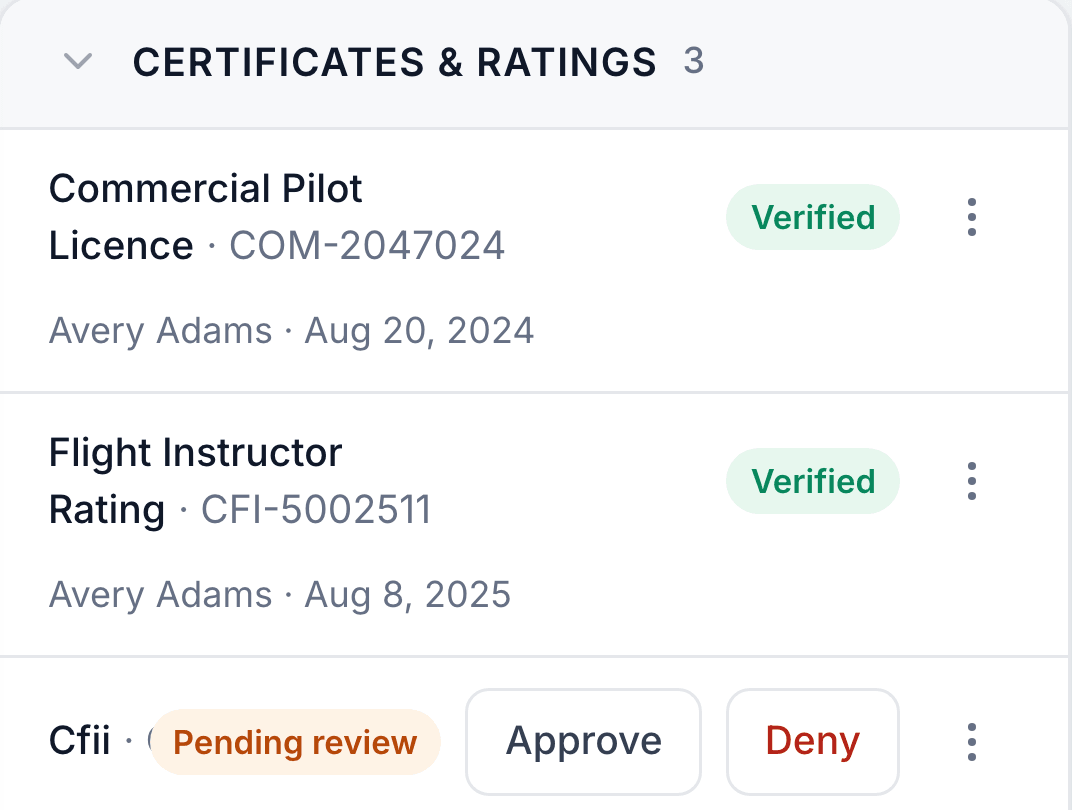
Members upload licences, medicals and booklets. Staff approve or deny them, with no self-approval. A denial includes a reason and notifies the member.
Verification that stays current
Licence verification records the reviewer and what they saw. Editing an approved medical clears its approval so it is reviewed again.
Consent with its context
Documents are signed with a personal PIN and kept with their signed version. Publishing new wording asks members to sign again. Privacy consent records the wording in effect at the time.
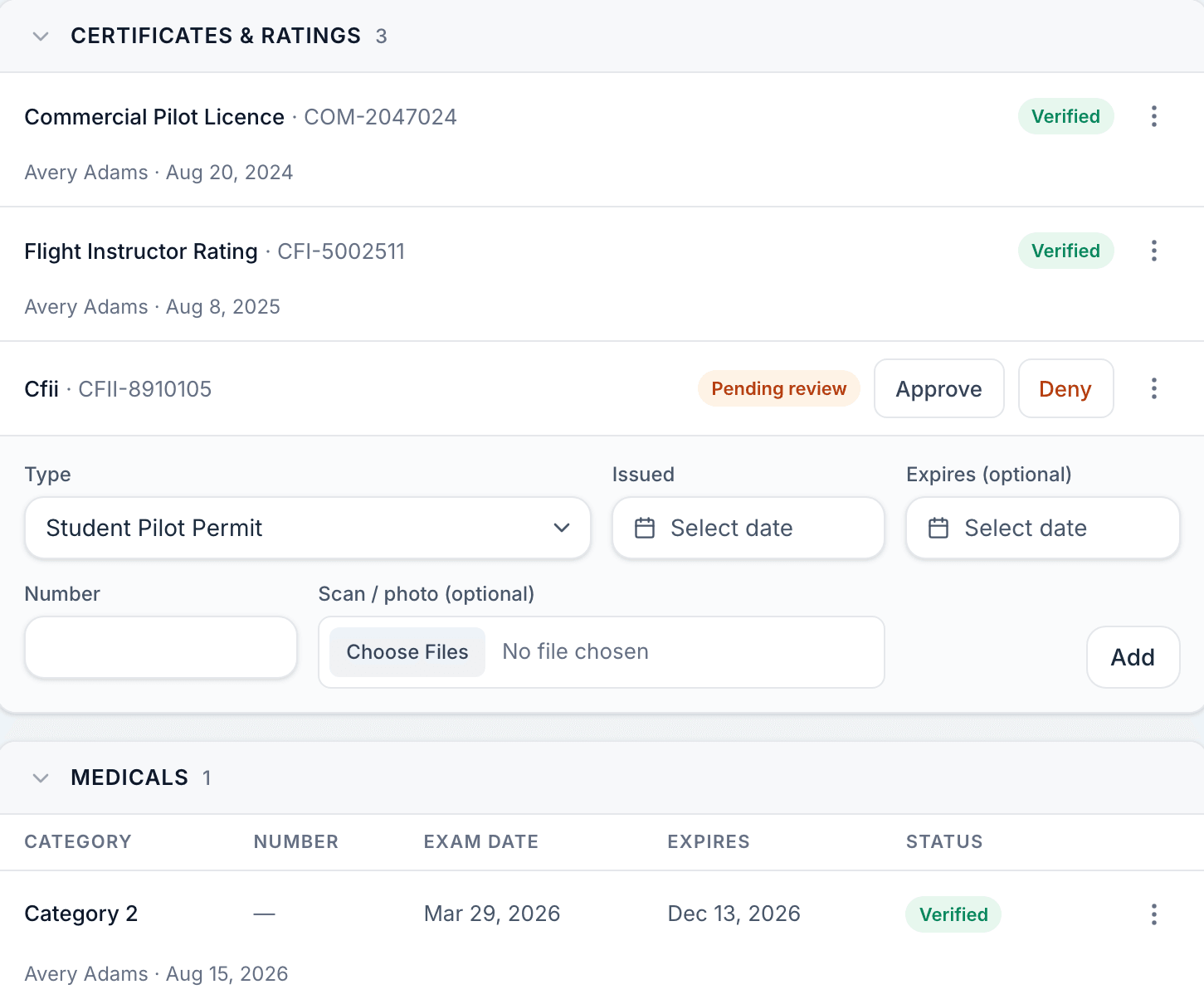
The checks follow your operating rules.
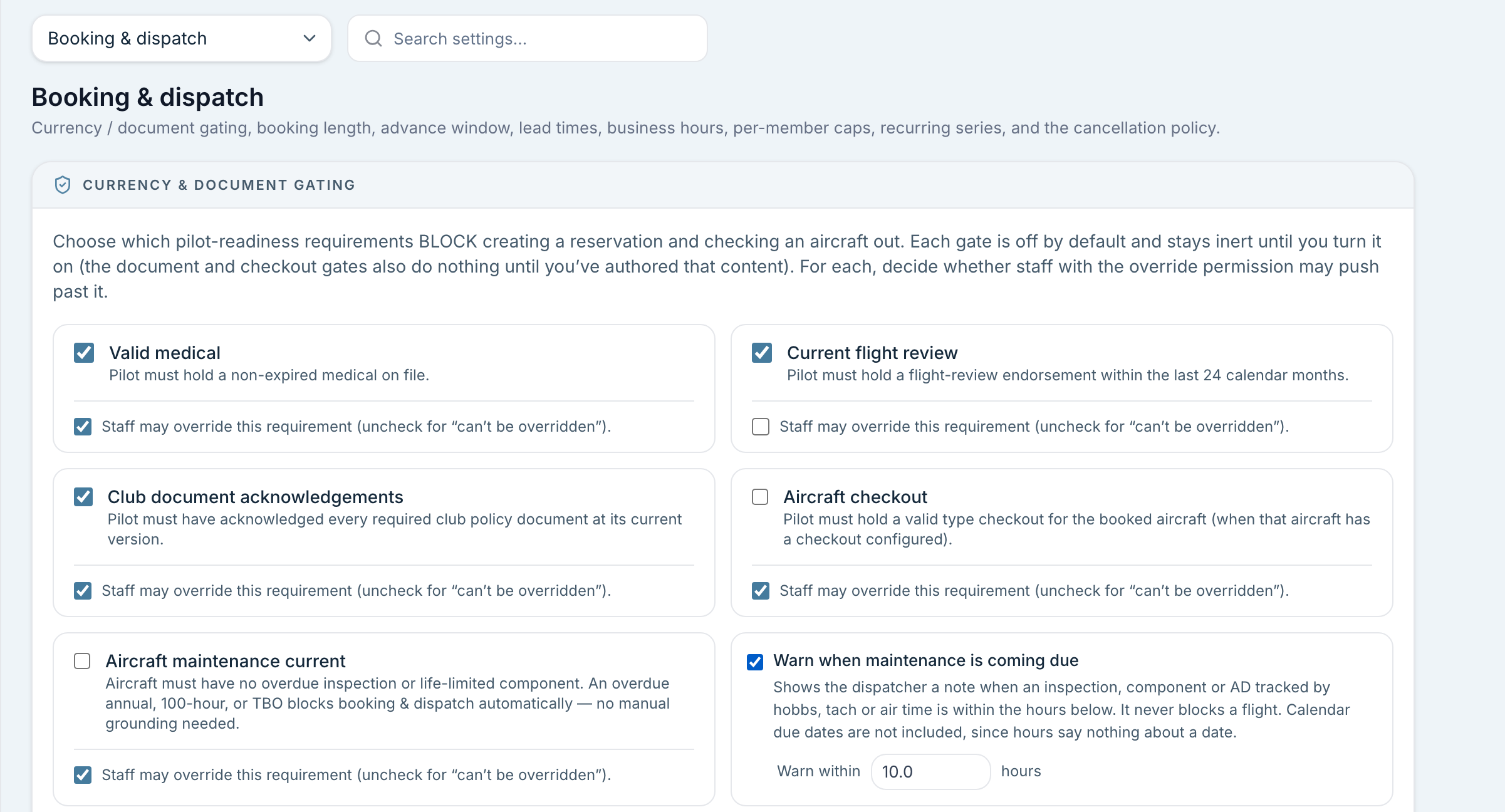
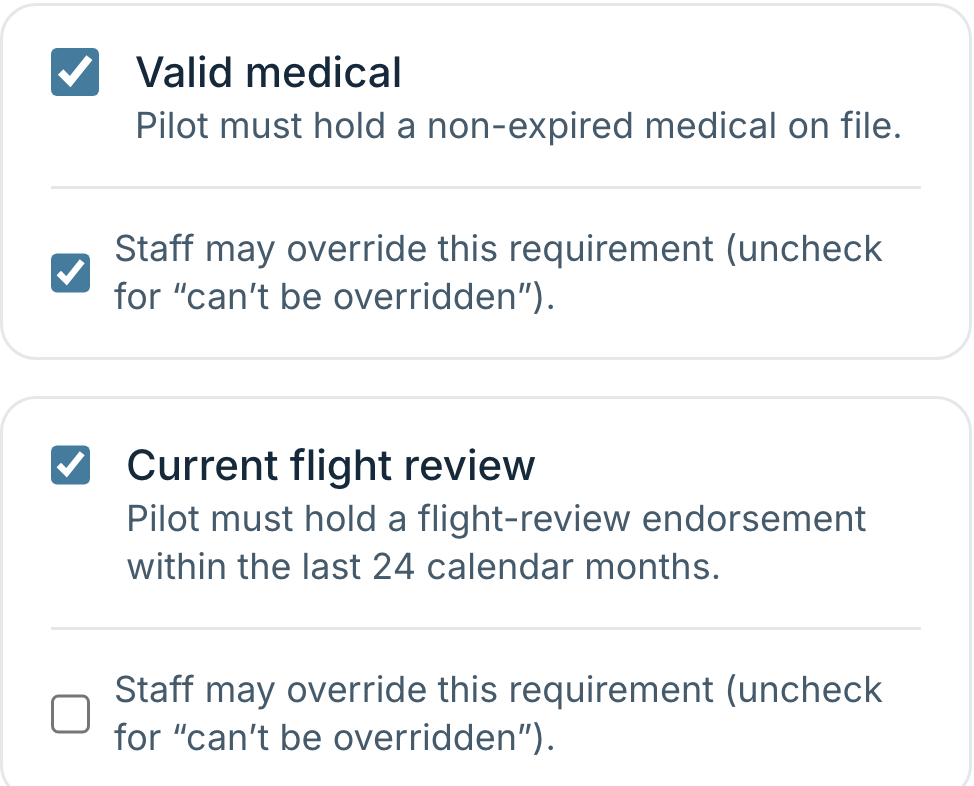
Choose which booking checks apply and decide separately whether staff can override them.
Checks and overrides
Switch each booking check on or off. Choose which roles may override a check, with a reason required before an override goes through.
Control whole areas
Turn billing off for everyone, regardless of permissions. Its history remains for when you turn it back on.
Language your team knows
Terminology follows your regulator, including snag or squawk and category or class.
Walkthroughs and demos run from 8am to 8pm, Mountain time.